
How to Set Up Perforce Triggers for Automated Builds
Learn how to configure Perforce triggers to automatically kick off Jenkins builds when code is submitted, streamlining your game development CI/CD pipeline.

- Perforce
- CI/CD
- Jenkins
- Tutorial
- Pipeline

This is Part 2 of the “Build Your Game Dev Pipeline” series. Part 1: Task Management → Part 2: Perforce + Jenkins Triggers → Part 3: Build Configuration → Part 4: Testing & QA → Part 5: Deployment.
It’s 4 PM on Friday. Someone asks in Slack: “Did anyone start the build?”
Three people respond: “I thought you did.”
If you’re managing a game development pipeline with Perforce and Jenkins, you know this pain. Manual build triggers mean someone has to remember, someone has to do it, and someone has to communicate that it’s done. That’s three failure points before a single line of code compiles.
Perforce triggers eliminate all of this. Every time code lands, your build kicks off automatically. No Slack messages, no waiting, no “I thought you did.”
Studios with automated build triggers often report significantly fewer integration issues. The reason is simple: problems surface immediately instead of accumulating until someone remembers to run a build. ButterStack connects your Perforce changelists to Jenkins builds automatically.
Prerequisites
Before you start, make sure you have:
- Perforce server access with admin privileges (to create triggers)
- Jenkins installed and accessible from your Perforce server
- A Jenkins job configured for your project
- Basic familiarity with shell scripting
- Task references in commits (see Part 1 for why this matters)
Understanding Perforce Triggers
Perforce triggers are scripts that run automatically in response to specific events. The main trigger types for CI/CD are:
| Trigger Type | When It Fires | Use Case |
|---|---|---|
change-submit |
After changelist created, before file transfer | Early validation (no file access) |
change-content |
After file transfer, before commit | Validate file contents |
change-commit |
After changelist is committed | Trigger builds on new code |
shelve-commit |
After files are shelved | Build shelved changes for review |
For automated builds, change-commit is what you want. It fires after the submit succeeds, so you’re always building committed code.
Step 1: Create the Trigger Script
First, create a script on your Perforce server that will call Jenkins. Save this as /opt/perforce/triggers/jenkins_build.sh:
#!/bin/bash

# Jenkins configuration - credentials from environment variables
JENKINS_URL="https://jenkins.yourcompany.com"
JENKINS_JOB="game-project-build"
JENKINS_USER="${JENKINS_USER:-jenkins-trigger}"
JENKINS_TOKEN="${JENKINS_API_TOKEN}"  # Never hardcode tokens

# Get changelist number from Perforce
CHANGELIST=$1

# Trigger Jenkins build with changelist parameter
curl -X POST \
  "${JENKINS_URL}/job/${JENKINS_JOB}/buildWithParameters" \
  --user "${JENKINS_USER}:${JENKINS_TOKEN}" \
  --data "CHANGELIST=${CHANGELIST}" \
  --data "cause=Perforce+submit+${CHANGELIST}"

# Log the trigger (optional)
echo "$(date): Triggered build for changelist ${CHANGELIST}" >> /var/log/perforce/jenkins_triggers.log
Security note: Store JENKINS_API_TOKEN as an environment variable on your Perforce server, not in the script itself. See the FAQ for more on secure credential handling.
Make it executable:
chmod +x /opt/perforce/triggers/jenkins_build.sh
Step 2: Configure the Perforce Trigger
Add the trigger to your Perforce server. Run p4 triggers and add:
Triggers:
    jenkins-build change-commit //depot/GameProject/... "/opt/perforce/triggers/jenkins_build.sh %changelist%"
This trigger:
- Fires on
change-commit(after successful submit) - Only watches
//depot/GameProject/...(adjust to your depot path) - Passes the changelist number to your script
Save and exit. The trigger is now active.
Step 3: Configure Jenkins
Your Jenkins job needs to accept the changelist parameter and sync to that specific change.
Create a Parameterized Build
In your Jenkins job configuration:
- Check “This project is parameterized”
- Add a String Parameter named
CHANGELIST - Configure the P4 Plugin to sync to that changelist:
- In the SCM section, select Perforce Software
- Under Populate Options, choose “Sync Only”
- Set “Pin build to a label or changelist” to
${CHANGELIST}
This lets the P4 Plugin handle workspace management, view mappings, and efficient syncing automatically.
Set Up the API Token
- Go to your Jenkins user settings
- Generate an API Token
- Use this token in your trigger script (not your password)
Step 4: Test Your Setup
Test the complete flow:
- Test the script manually:
/opt/perforce/triggers/jenkins_build.sh 12345Check that Jenkins receives the build request.
- Submit a test change:
p4 submit -d "PROJ-100 Test trigger setup"Watch Jenkins. A new build should start automatically.
- Verify the changelist parameter: Check the Jenkins build parameters to confirm the correct changelist was passed.
Troubleshooting
Trigger not firing
- Check trigger syntax with
p4 triggers -o - Verify the depot path matches your files
- Check Perforce server logs:
/var/log/perforce/p4d.log
Jenkins not receiving requests
- Test connectivity from Perforce server:
curl -I ${JENKINS_URL} - Verify API token is valid
- Check Jenkins security settings allow remote triggers
Build syncing wrong files
- Ensure
CHANGELISTparameter is being passed correctly - Verify the “Pin build to a label or changelist” field contains
${CHANGELIST} - Verify the Perforce user has access to the depot path
Script permission errors
- Trigger scripts run as the Perforce server user
- Ensure the script and log directories are writable
- Check SELinux/AppArmor if on Linux
Advanced: Filtering by File Type
You might not want every submit to trigger a build. Triggering on documentation changes wastes build resources. Filter by file extension:
#!/bin/bash
CHANGELIST=$1

# Get list of files in this changelist
FILES=$(p4 describe -s ${CHANGELIST} | grep "^\.\.\.")

# Only trigger if code files changed
if echo "$FILES" | grep -qE '\.(cpp|h|cs|uasset)'; then
    # Trigger build
    curl -X POST ...
fi
Advanced: Multiple Build Configurations
Trigger different jobs based on the depot path:
Triggers:
    build-main    change-commit //depot/Main/...     "/opt/perforce/triggers/jenkins_build.sh %changelist% main-build"
    build-release change-commit //depot/Release/...  "/opt/perforce/triggers/jenkins_build.sh %changelist% release-build"
Update your script to accept the job name as a second parameter.
Advanced: Passing Task IDs to Builds
If you followed Part 1 and require task IDs in commits, you can extract and pass them to Jenkins:
#!/bin/bash
CHANGELIST=$1

# Extract task ID from commit description
DESCRIPTION=$(p4 describe -s ${CHANGELIST})
TASK_ID=$(echo "$DESCRIPTION" | grep -oE 'PROJ-[0-9]+' | head -1)

# Trigger Jenkins build with task ID
curl -X POST \
  "${JENKINS_URL}/job/${JENKINS_JOB}/buildWithParameters" \
  --user "${JENKINS_USER}:${JENKINS_TOKEN}" \
  --data "CHANGELIST=${CHANGELIST}" \
  --data "TASK_ID=${TASK_ID}" \
  --data "cause=Perforce+submit+${CHANGELIST}"
Now your builds carry task context. When a build fails, you know exactly which task caused it.
FAQ
How do I prevent a flood of builds when multiple people submit at once?
Jenkins has built-in queue management. If a build is already running, new trigger requests queue up. You can also configure Jenkins to combine queued builds using the Throttle Concurrent Builds plugin or Jenkins’ native quiet period setting.
For high-volume teams, consider a cooldown in your trigger script that only fires if no build started in the last 60 seconds.
Can I trigger builds for shelved changes?
Yes. Use the shelve-commit trigger type instead of change-commit. This is useful for pre-submit validation: developers shelve their changes, a build runs, and they know if it’s safe to submit.
What if my Jenkins server is behind a firewall?
Your Perforce server needs network access to Jenkins. Options:
- Open the specific port (typically 8080) between servers
- Use a reverse proxy with authentication
- Set up a webhook relay service
How do I handle authentication securely?
Never put credentials directly in trigger scripts. Instead:
- Store tokens in environment variables
- Use a secrets manager
- Create a dedicated Jenkins service account with minimal permissions
Should I trigger on every depot path?
No. Only trigger on paths that contain buildable code. Documentation, design files, and temporary workspaces shouldn’t trigger builds. Use specific depot paths in your trigger configuration.
How ButterStack Helps
Setting up triggers is the first step. Knowing what happened after the build kicks off is where most teams lose visibility.
ButterStack watches your Perforce changelists and Jenkins builds automatically. When a build fails, you see exactly which changelist triggered it, which task it was for, and who submitted it. No more digging through Jenkins logs trying to match timestamps.
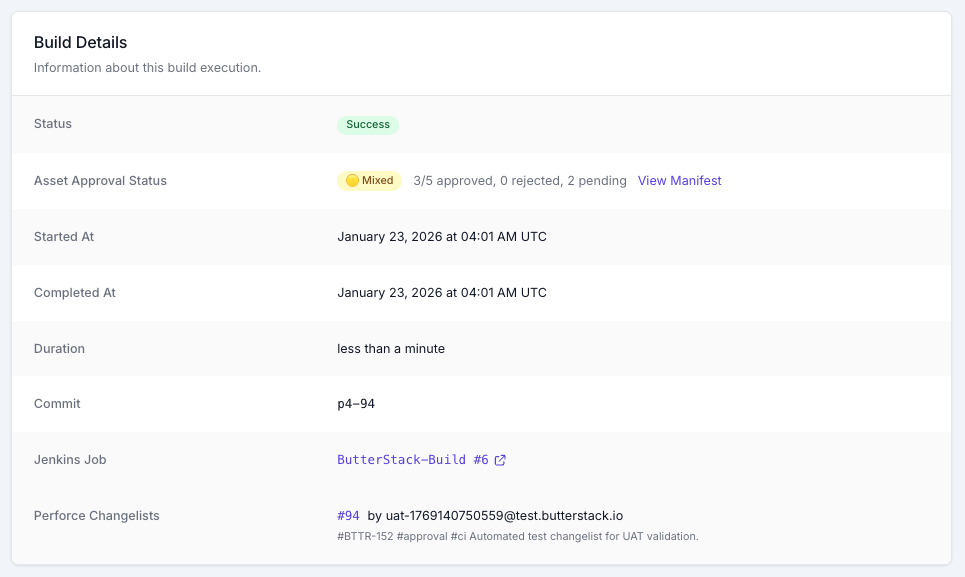
We built ButterStack because we got tired of the “which build has my fix?” questions. If you’re setting up automated triggers and want help getting visibility into your pipeline, we’re here to help.
What’s Next
With automated build triggers, every submit to monitored depot paths kicks off a build. In Part 3, we’ll cover build configuration—how to set up Jenkins jobs that compile, package, and validate your game across multiple platforms.
Conclusion
With Perforce triggers connected to Jenkins, every code submission to monitored paths automatically kicks off a build. No more manual triggers, no more “did anyone start the build?” questions in Slack.
This setup gives you:
- Immediate feedback on every submit
- Traceability between changelists and builds (especially with task IDs from Part 1)
- Consistency in your CI/CD pipeline
- Time savings of hours previously spent on manual build coordination
The combination of task management and automated triggers creates a pipeline where every change is tracked from request to build. When something breaks, you can trace backward: which build failed → which changelist caused it → which task requested that work → who asked for it.
Thanks!
Ryan L’Italien
Founder and CEO of ButterStack
Want to see what pipeline observability looks like? Try ButterStack free and connect your first integration in minutes.
Or just email me at: ryan@butterstack.com.